 for CorelDRAW
Latest version: 6.10.25.35
Very powerful search function.
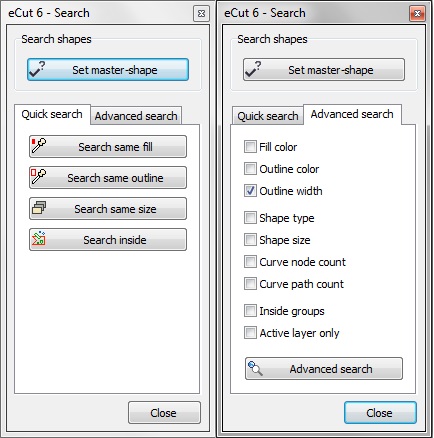
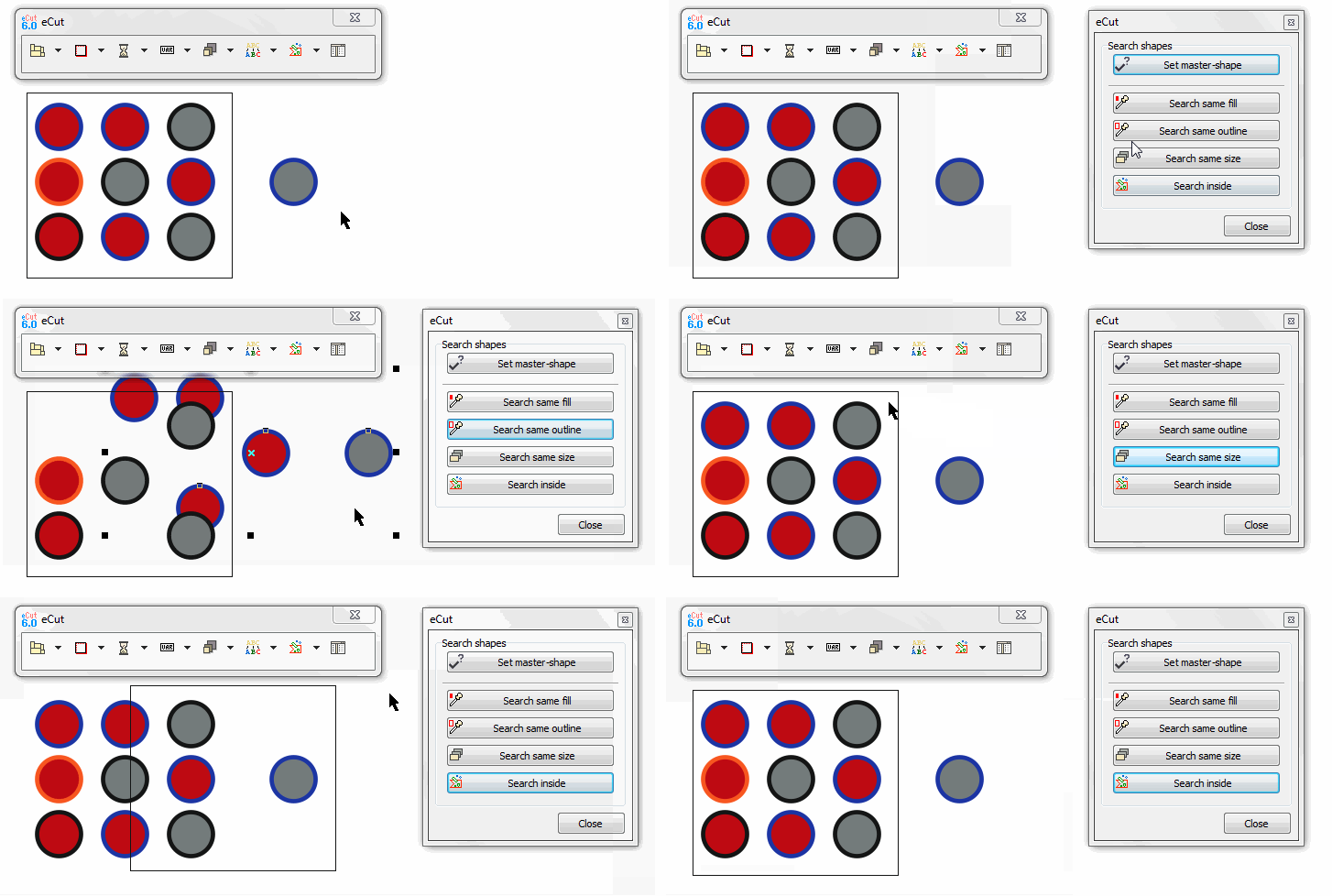
Set master-shape and you can find any shape with same fill/outline/size.
Or you can find any shape inside master-shape.
You can automate searching process.
Use this Visual Basic code to search shapes without need to show main search panel.
This is example for CorelDRAW X6 32 bit. If you have another version - simply change DLL name in first string.
Private Declare PtrSafe Function eCutR6Pro Lib "c:\eCut\eCut6\DLL\eCut16r6.dll" (ByVal f As Integer, ByVal j As Integer) As Integer
Public Sub SearchSilent()
'Do not delete this line - it is necessary to set master-shape.
eCutR6Pro 30, 0
'search by fill
eCutR6Pro 30, 1
'search by outline
'eCutR6Pro 30, 2
'search by size
'eCutR6Pro 30, 3
'search inside container
'eCutR6Pro 30, 4
End Sub
eCut 5 (old)
rStones
AI nesting
eCut for Illustrator
eCut for MAC OS
[Nesting][Cut/Plot + contour cutting][Perimeter][Area][Cost][Time][Weeding lines][Multiply][Rectangle nesting][LEDs][Neon][Draft][Central line][Smart divide][Connect opened paths][Fillet][Find intersections][Find duplicates][Search shapes][Create SignBox][Create lines][Create grid][Create cropmarks][Reduce nodes][Effects][Edge roll][Contour cutting file][Separate curve][Remove duplicated edges][Slice object][Eyelets][Create carrier (boundbox)][Align and Distribute][Set size][CAD functions][DXF Export][Replace][Reference scale][Create bridges][Variable][Hotwire cutting][Route optimizer][Finger joint box][Finger joint shape][Volume calculator][Door panels]
Copyright © 2007 eCut.